Dr.Fone: Photo & Data Recovery
- 3.8
- Rating
- 10.00M
- Installs
- Free
- Price

 Analysis by App-foxy
I came away from Dr.Fone: Photo & Data Recovery with a fairly clear impression: it is most useful when moving information between phones is the immediate problem, while its recovery promise needs more realistic expectations. This free tools app from Shenzhen Wondershare Software Co., Ltd. brings transfer and recovery tasks into one place, which is convenient when I do not want to search through several unrelated utilities. It is available for Everyone and supports Android devices running version 6.0 or later.
My main recommendation is simple. If you are changing phones, trying to rescue pictures from a device that still works, or looking for a guided alternative to manual file copying, it is worth trying. If you expect it to bring back every deleted file from any damaged phone, I would be much more cautious. The app is approachable, but recovery is never as predictable as transferring visible files.
What the app is really good at
The strongest part of the experience is the way it treats phone migration as a practical task rather than a technical project. Instead of opening folders, guessing which directories contain camera images, and remembering which messaging attachments matter, I can use a guided workflow to select the information I want to move. That matters most when the old phone is crowded with years of photos and the new one needs to be ready quickly.
You May Also Like

 Pandora - Music & Podcasts
Pandora’s Music Is Easy to Start, but Harder to Recover
Pandora’s strength is its low-effort path from a seed to a station. Its weak spot is how much confidence it asks you to place in connection, setup, and quiet recovery.

 8 Ball Pool
 Is Built on Rivalries, Rematches, and Routine
A close look at the rivalries, rematches, shared routines, and unanswered safety questions that turn a quick pool match into a persistent mobile community.

 Samsung Music
’s Quiet Strength Is Playing What You Already Own
Its reach comes less from spectacle than from dependable access to a personal library. That simplicity is both the app’s strongest retention engine and its ceiling.

 AccuWeather: Weather Radar
AccuWeather Review: A Quick, Clear Forecast for Everyday Decisions
For everyday plans, the best forecast is the one you can understand quickly. AccuWeather makes rain timing, radar, and local conditions easy to act on, with a few trade-offs.

 Hill Climb Racing
Why Hill Climb Racing Still Turns Crashes Into One More Run
A tiny car, a bumpy hill and one more upgrade: Hill Climb Racing keeps resurfacing because its simple chaos makes every near-miss feel personal.

 AliExpress - Shopping App
AliExpress Makes Global Shopping Feel Personal, but Shoppers Bear the Risk
AliExpress turns a global marketplace into a pocket-sized discovery engine. Its reach is useful, its shopping loop compelling, and its trade-offs easy to miss.
More From Our News Desk
View All News


For example, imagine replacing a phone after the screen has become unreliable but the device still turns on. I would first charge both phones, connect them to the same wireless network where appropriate, and make sure the old device remains unlocked during the process. Then I would review the available transfer choices instead of immediately selecting everything. Moving only the photos, videos, contacts, and documents I actually need can reduce clutter on the new phone and make the result easier to check.
That last step is more important than it sounds. A transfer is not finished just because a progress indicator reaches the end. I recommend opening a sample of older and newer pictures, checking a few videos, and confirming that contacts appear correctly before wiping the old phone. With a tool like this, the safest workflow is transfer first, verify second, erase last.
The wireless approach is also friendlier than relying on a cable that may be missing, damaged, or incompatible with one of the phones. It can be especially helpful for people who are comfortable with ordinary phone settings but do not want to manage file paths. The trade-off is that wireless transfers are sensitive to network quality, battery level, and interruptions. I would not begin a large migration while traveling on a weak public connection or when either phone is nearly empty.
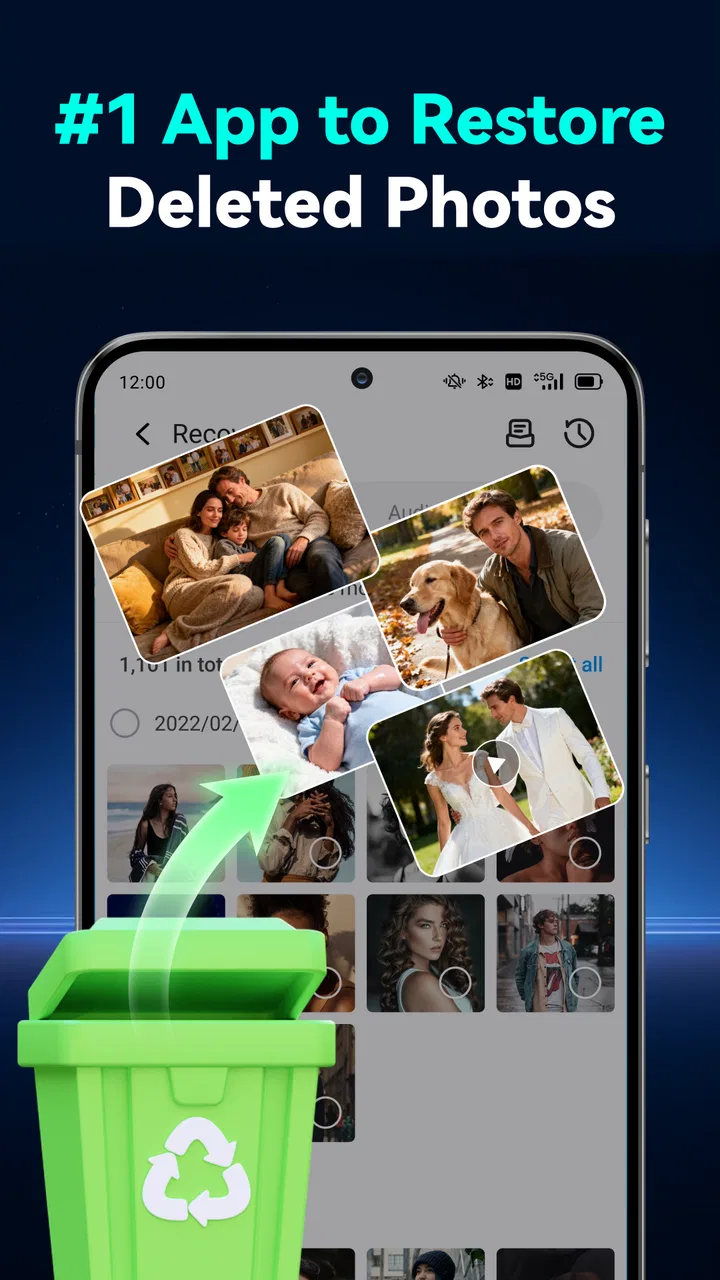
Another useful detail is the ability to approach photo recovery separately from a full phone transfer. Those are different jobs, and combining them in one tool can save time. A transfer is about copying information that is still accessible; recovery is about finding material that may no longer be visible through the normal gallery or file manager. Keeping those purposes distinct helps me decide what to try first instead of treating every missing picture as a reason to reset or replace the device.
Recovery works best when the phone is still usable
I would begin with the least invasive option. If the phone still starts normally, I would stop taking new photos, avoid installing several other recovery tools, and check the app’s scan options before doing anything else. New data can occupy the space where deleted files once existed, so continued use may reduce the chance of finding older content. This is one of the most practical habits to adopt, and it is more valuable than simply pressing a recovery button repeatedly.
It is also worth checking ordinary locations first. A missing picture may have been moved to a trash folder, saved in a messaging app, or stored in a cloud service rather than truly deleted. Dr.Fone can be useful as a second step, but no recovery application should replace a quick search through the phone’s gallery, file manager, and existing backups. If a file is still present somewhere, restoring it through the original location is usually simpler and safer.
When I use a recovery tool, I want to preview results before restoring them. That helps separate useful images from thumbnails, duplicates, incomplete files, and items with unhelpful names. A careful selection can save storage and make the final result much easier to organize. I would create a clearly named recovery folder rather than mixing recovered material into the main camera roll immediately. That gives me time to compare duplicates and identify damaged files.
There is an important limitation here: successful recovery depends on the condition of the phone and what happened after deletion. A device that has been heavily used since files disappeared is a harder case than one that was quickly taken out of service. Physical damage, locked access, encryption, and system changes can also affect what any app can see. I appreciate guided software for making the attempt less intimidating, but I would never treat a scan as a guarantee.
Small workflow choices make a big difference
One non-obvious strength is that the app can serve as a staging point during a messy phone change. Rather than transferring everything blindly, I can use it to separate the urgent material from the archive. For instance, I might move current contacts and recent photos first, confirm that the new phone is working, and only then deal with older videos or documents. This two-stage approach is slower than one giant transfer, but it makes failures easier to identify.
I also prefer to keep both phones connected to power during a long job. Wireless work can consume more battery than ordinary browsing, and an interruption halfway through a large batch creates uncertainty about what arrived. Afterward, I would compare folders or albums rather than relying only on the displayed item count. Videos deserve special attention because a file can appear in a list while still needing a full playback check.
Another practical tip is to prepare the destination before starting. I would remove obvious duplicates, make enough free storage, and update the destination phone’s ordinary gallery or file tools if needed. This is not glamorous, but it prevents the recovery app from being blamed for problems caused by a full or disorganized phone. It also makes the result easier for someone else to inspect if I am helping a family member.
The app’s appeal is partly its concentration of tasks. I do not need one utility for moving pictures, another for examining missing files, and a third for a basic migration attempt. That convenience is meaningful for occasional users. However, people who already understand Android file management may find manual copying more transparent, especially for a small number of folders. A computer-based backup can also be preferable when I want a long-term archive that I can inspect independently of an app.
Where the experience becomes less comfortable
The biggest weakness is that the broad promise of recovery can make the process sound more certain than it really is. Seeing scan results can create hope, but a listed item is not automatically a complete, usable photograph. Some results may be duplicates, fragments, cached previews, or files without the original context. I would judge the tool by the quality of the recoverable files, not by how many entries appear during a scan.
There is also a privacy consideration. Photos, contacts, and documents are personal by nature, so I would read each permission request and pay attention to where a workflow asks me to select or expose data. I would avoid using the app on a shared device without checking the selected folders carefully. After a transfer or recovery, I would review the destination and remove temporary copies that I no longer need. Convenience is valuable, but it should not lead to careless handling of private material.
The free starting point is helpful, yet the app includes in-app purchases ranging from $1.99 to $59.99 per item. That makes it important to understand the path from trying the app to paying for something. I would not purchase immediately after seeing a promising scan. First, I would confirm that the previews are genuine, that the files open correctly, and that the required recovery or transfer action is clearly identified. For a small number of replaceable pictures, paying may not make sense; for irreplaceable family media, the calculation is different.
Performance can vary with the job. A few contacts or recent images are a very different workload from years of videos. Long scans may require patience, and wireless transfers can be disrupted by a sleeping phone, a weak connection, or an accidental change of network. I would keep the app open when possible, disable habits that interrupt the process, and avoid treating the phone as available for normal use until the job is complete.
For people who need a complete device backup, this may not be my first choice. The phone’s built-in backup tools, a computer folder copied manually, or a dedicated cloud service can be better when the priority is repeatable archiving rather than one-time rescue. Those alternatives may feel less polished, but they can offer a clearer view of exactly where the files are stored. Dr.Fone is strongest when guidance and convenience matter more than granular control.
Who should use it and who should skip it
I think the app is a good fit for someone moving from an old Android phone to a new one and feeling overwhelmed by the amount of personal material involved. It is also suitable for a family member who needs a more guided process than browsing folders on a computer. The transfer side has the most predictable value because it works with information that is still accessible and gives the user a focused way to move it.
It can also help when a photo has disappeared from the normal gallery and ordinary checks have not found it. In that situation, I would use it promptly, limit further activity on the phone, and treat the scan as an investigation rather than a promise. The best candidates are devices that still function well enough to be accessed and searched.
I would skip it if my only need were to copy a handful of pictures. Selecting those files manually would likely be faster and would give me more direct control. I would also look elsewhere if I needed a carefully structured, recurring backup system for work documents or a large media library. A dedicated backup routine is more appropriate than opening a recovery-focused tool only after something goes wrong.
People with a severely damaged, locked, or unresponsive phone should keep expectations modest. Software can only work with the access the device allows. If the material is legally or emotionally irreplaceable, I would consider professional data recovery before repeatedly experimenting with different apps. That can cost more, but repeated attempts may make a difficult case harder to assess.
The app has attracted a sizeable audience, with over 10 million installs and an average rating of 3.8 from around 25 thousand ratings. I read that as evidence of broad usefulness rather than universal satisfaction. The rating feels consistent with a tool that solves straightforward transfers for many people while producing more mixed results in difficult recovery situations.
What to know before installing
Dr.Fone was released on July 27, 2021, and the current version is 5.3.10.1050. It is free to install, though optional purchases are available. Before beginning, I would check that the Android phone meets the minimum requirement of Android 6.0, charge both devices, free enough storage on the destination, and decide whether I am transferring accessible data or attempting recovery. That preparation prevents the two workflows from becoming confused.
I would also make a short checklist of what matters most. Contacts, personal photos, work documents, and messaging attachments may be scattered across different places, so a checklist makes it easier to notice what was overlooked. After the operation, I would inspect recent and older items, open several videos, and verify contacts by searching for names I know. These checks are quick and can prevent a painful discovery after the old phone has been reset.
One detail I value is that the app does not force me to think like a file-system expert. The guided approach lowers the barrier for occasional users, and its focus on phone data makes sense for a one-off migration or recovery attempt. Still, that simplicity should not replace judgment. I remain responsible for selecting the right device, choosing the right content, protecting private files, and keeping an independent backup of anything important.
My final view is favorable, but deliberately limited: Dr.Fone: Photo & Data Recovery is a convenient first tool for accessible transfers and a reasonable recovery attempt, not a guarantee against data loss. I would recommend it to someone who wants a friendlier alternative to manual phone-to-phone copying and understands that deleted-file recovery has technical limits. I would not recommend relying on it as the only backup plan or paying before checking whether the recovered results are genuinely usable.
For my own use, I would choose it when the task is immediate and practical: move important material to a new phone, inspect a missing photo, and verify everything before retiring the old device. For routine backups, small file copies, or severe hardware failure, I would choose a built-in backup, a computer archive, or professional help instead. That distinction gives the app its proper place: useful, accessible, and worth trying, provided I approach recovery with patience and realistic expectations.
FAQs for Dr.Fone: Photo & Data Recovery
01What is Dr.Fone: Photo & Data Recovery used for?
Dr.Fone: Photo & Data Recovery is designed to help users find and restore accidentally deleted photos, videos, contacts, messages, and other files from supported Android or iOS devices. Its usefulness depends on the device model, operating system, storage condition, and whether deleted data has already been overwritten. It is best used as soon as possible after losing important files.
02Can Dr.Fone recover every deleted photo or file?
No recovery application can guarantee that every deleted file will be restored. Dr.Fone may locate recoverable data, but success depends on how the file was deleted, how much the device has been used afterward, available backups, and the type of storage involved. Before paying for recovery, users should scan the device and carefully review the files the app identifies.
03Does Dr.Fone: Photo & Data Recovery require root access or special permissions?
The permissions and technical requirements may vary depending on the device, operating system, and recovery feature being used. Some functions may work without root access, while deeper Android recovery tools can require additional permissions or computer-based procedures. On iPhone and iPad, recovery may rely on device backups or desktop software. Always read the permission requests and setup instructions before continuing.
04Is Dr.Fone: Photo & Data Recovery free to use?
The app may allow users to install it, scan for recoverable files, or preview certain results without charge, but complete recovery features can require a subscription or one-time purchase. Pricing and available tools may differ between Android, iOS, and desktop versions. Check the current in-app purchase details, trial terms, renewal conditions, and refund policy before submitting payment information.
05Is it safe to use Dr.Fone for recovering private photos and data?
Users should treat any recovery tool as sensitive because it may request access to personal photos, contacts, messages, storage, or device backups. Download Dr.Fone only from an official store or the developer’s legitimate website, review its privacy policy, and grant only necessary permissions. Avoid modified APK files, and consider backing up current data before starting a recovery process.
Pros
- Recovers photos
- videos
- contacts
- and messages from several storage sources.
- Simple guided process suitable for users with limited technical experience.
- Preview options help select specific files instead of restoring everything.
- Supports recovery from iPhone
- Android devices
- SD cards
- and backups.
- Useful for retrieving accidentally deleted files after a device problem.
Cons
- Successful recovery depends heavily on whether deleted data has been overwritten.
- Some advanced recovery tools require a paid subscription or separate purchase.
- Scanning can take considerable time when analyzing large device storage.
- Android recovery features may vary by phone model and operating system version.
- Recovered files may lose original names
- folders
- or some metadata.

Dr.Fone: Photo & Data Recovery
Gallery